Category: Video

  • Basic Photo Manipulation in Photoshop

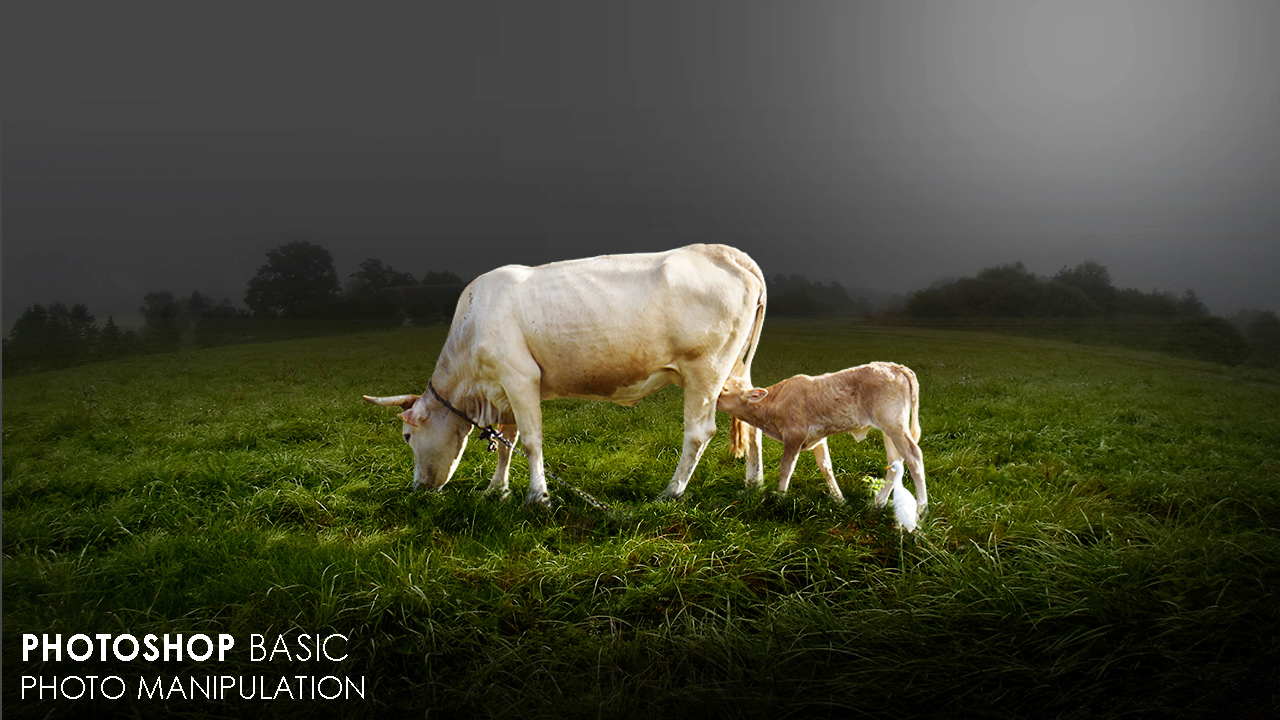
    Basic Photo Manipulation in Photoshop

    In this video tutorial you will learn how to manipulate photo in Photoshop

    You will also learn from this video:
    -How to add moon lights
    -How to adjust object on grass
    -How to highlight or dark

    Step by Step

    1-Open Photoshop and create one new document 1280x720px.
    2-Place background image and adjust it to canvas. Duplicate the layer change to bottom layer blend mode from normal to multiply, add layer mask on upper layer take gradient tool set foreground black and background transparent and drag it from up to center. Select bottom layer press Ctrl+T, right click and then click on Warp and drag it up from center.
    3-Place cow image and rasterize the layer. Select eraser tool and erase the unwanted elements. Add layer mask take grass brush tool and brush it on foot for grassing.
    4-Create one new brightness/contrast adjustment layer below the cow layer. increase the brightness and invert the mask by pressing Ctrl+I. Take soft brush tool and paint once or twine now press Ctrl+T and resize according to light.
    5-Create one new blank layer below the cow layer and change the blend mode from normal to soft light, take soft brush tool and create cow shadow.
    6-Create one new blank layer take soft brush tool set foreground color white and paint once. Change the bend mode from normal to soft light and then press Ctrl+T and resize, adjust it for moon light.
    7-Create one new gradient map adjustment layer set color black and white change the blend mode from normal to overlay and decrease the opacity.
    Background 


    Cow 

  • How to add sun lights | How to blur background in Photoshop | Part-2-2

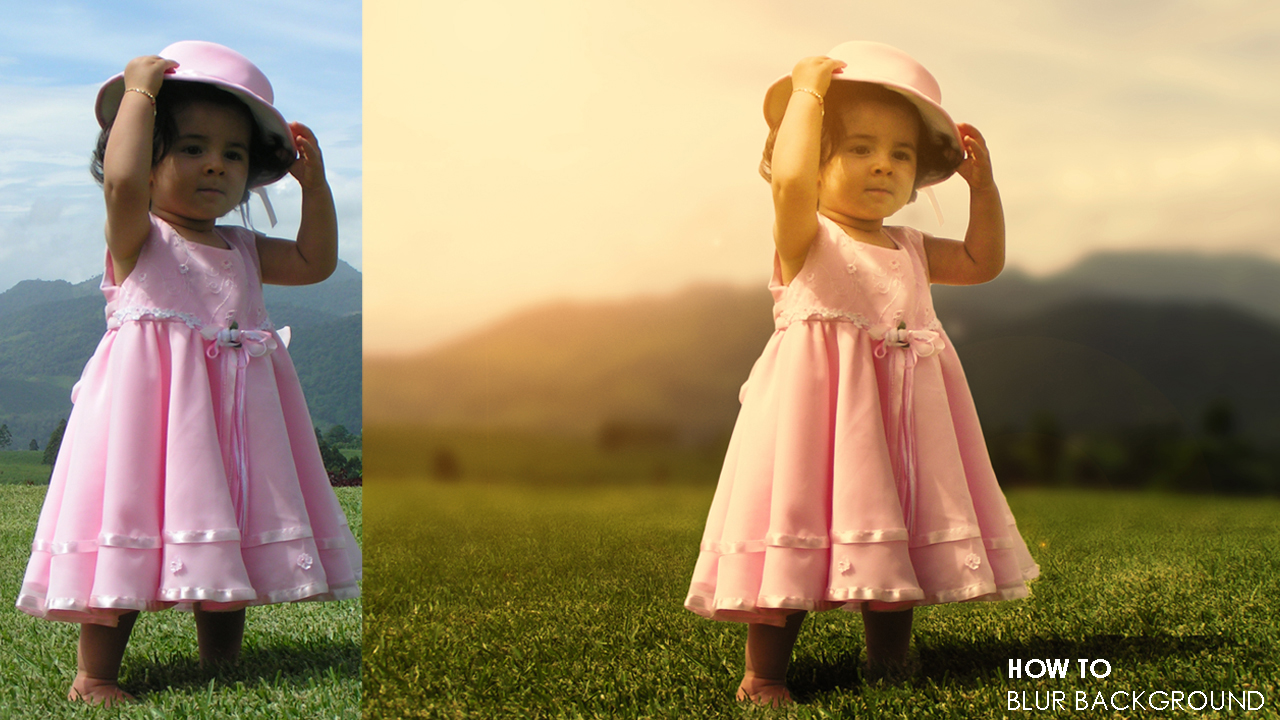
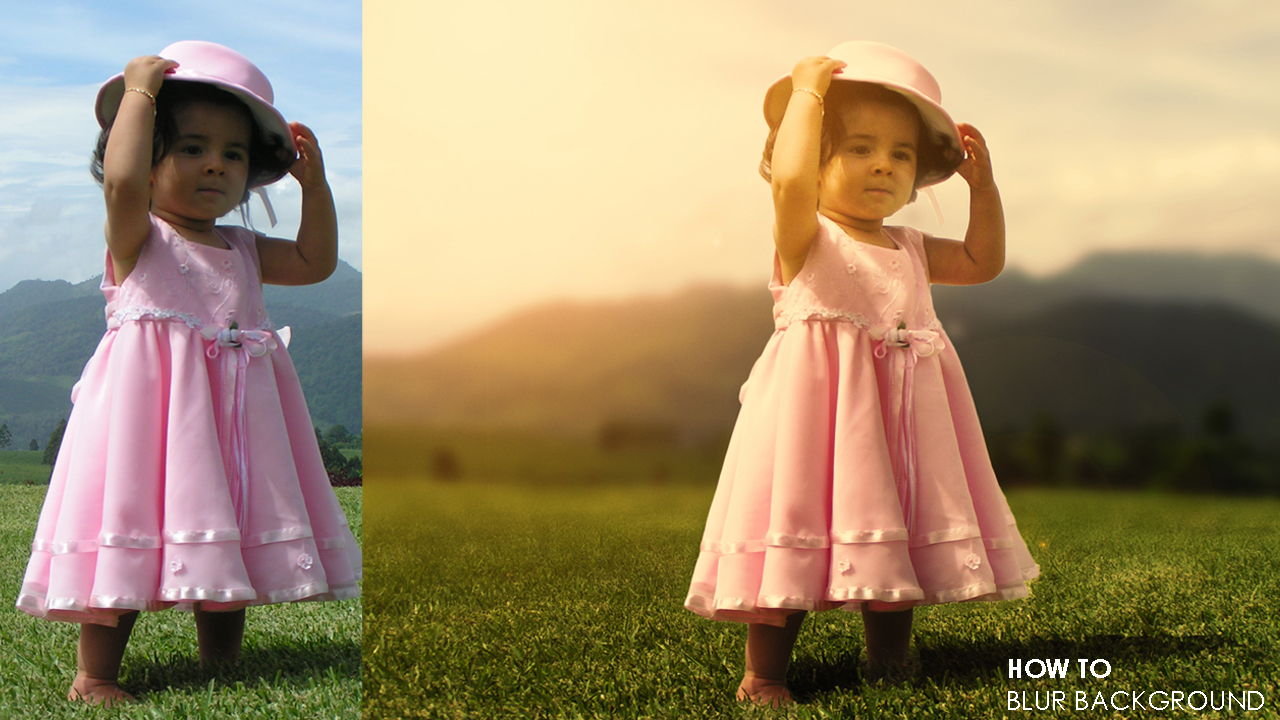
    How to add sun lights | How to blur background in Photoshop | Part-2-2

    In this part-2 video tutorial you will learn how to add sun lights to photos in Adobe Photoshop.

    Part-1: https://youtu.be/79DLQB1kMXQ

    Image Credit: 

  • 2  Simple Steps to Blur Background in Photoshop | Part-1-2

    2 Simple Steps to Blur Background in Photoshop | Part-1-2

    In this video tutorial you will learn How to blur background in Photoshop with 2 simple steps.

    Method-1

    1-Open your image in Photoshop and duplicate it.

    2-Make selection of object and duplicate it by pressing Ctrl+J. Now make selection of duplicated layer by pressing Ctrl and click on layer thumbnail select the bottom layer and go to select>modify>expand change the expand value. Now go to Edit>Fill and select content aware fill and then click OK.

    3-Go to filter>blur>tilt-shift and then change the value and direction according to your choice.

    Method 2


    1-Open your image in Photoshop and duplicate it.

    2-Make selection of object and duplicate it by pressing Ctrl+J. Now make selection of duplicated layer by pressing Ctrl and click on layer thumbnail select the bottom layer and go to select>modify>expand change the expand value. Now go to Edit>Fill and select content aware fill and then click OK and duplicate it.

    3-Go to filter>blur>gaussian blur change the value according your choice.

    4-Add layer mask take gradient tool set foreground color black and background color white and then drag it from down to center.

    Image Credit: 

  • Damaged Photo Repair | Remove Dust and Scratches | Photoshop Tutorial

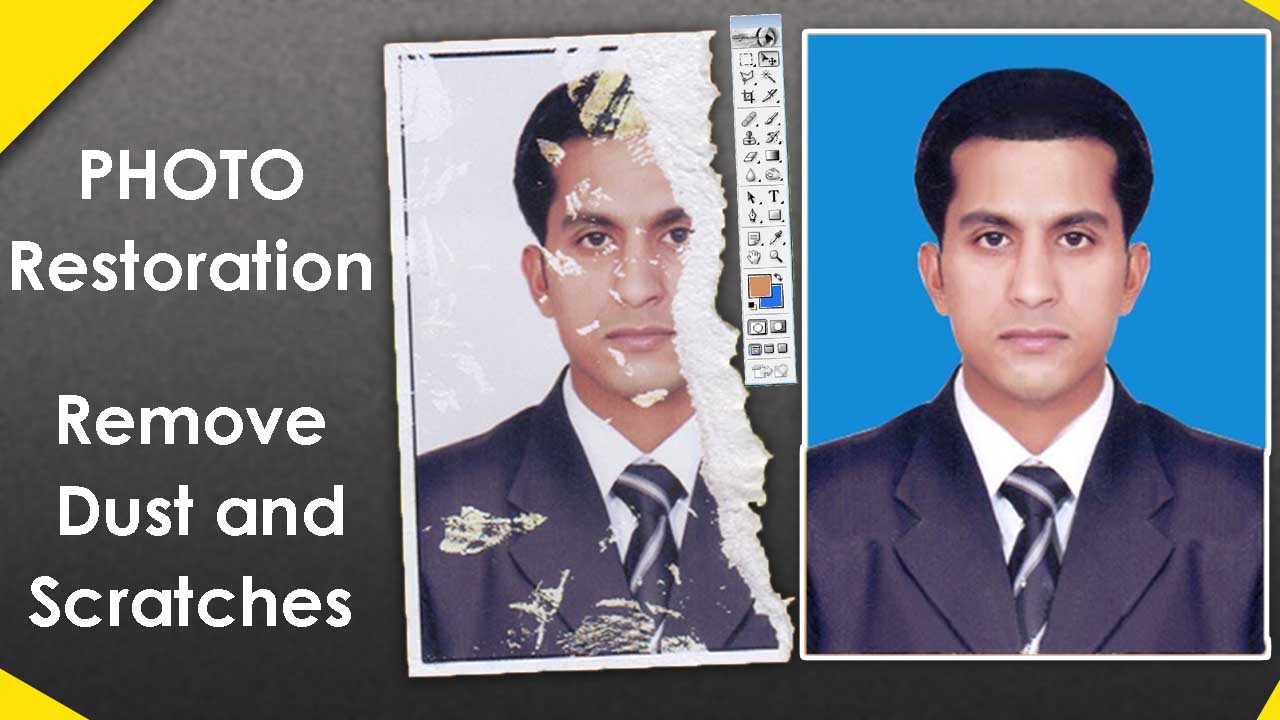
    Damaged Photo Repair | Remove Dust and Scratches | Photoshop Tutorial

    In this video you will learn how to remove scratches form photo and how repair damaged photo in photoshop 7.0.


    Video Tutorial

    RELATED VIDEOS: Best Way to Colorize Black and White Photo in Photoshop: https://youtu.be/dcVkWbPVzGg Photo Restoration | Remove Dust and Scratches in Photoshop: https://youtu.be/YXGTg1QBGjE How to Scan / Convert Photo Negative Into Digital Photo In Photoshop: https://youtu.be/BcdTw9eY7cM Old Photo Restoration | Colorize a Black and White Photo | Damaged Photo Repair in Photoshop: https://youtu.be/PD0WnOKWfCc WATCH MORE: Business Card Design in Photoshop: https://goo.gl/F7ZTHP Cracked Face Effect | Photoshop Tutorial: https://goo.gl/6BQyrc Banner Design using Urdu InPage CorelDRAW X6: https://goo.gl/EttN6U Photoshop Tutorials Playlist: https://goo.gl/zLkpYQ

    ————————————————————————
    Music Credit: On My Way Kevin MacLeod (incompetech.com) Licensed under Creative Commons: By Attribution 3.0 License https://creativecommons.org/licenses/b…

  • Concept Art | Photo Manipulation Effects Tutorial in Photoshop

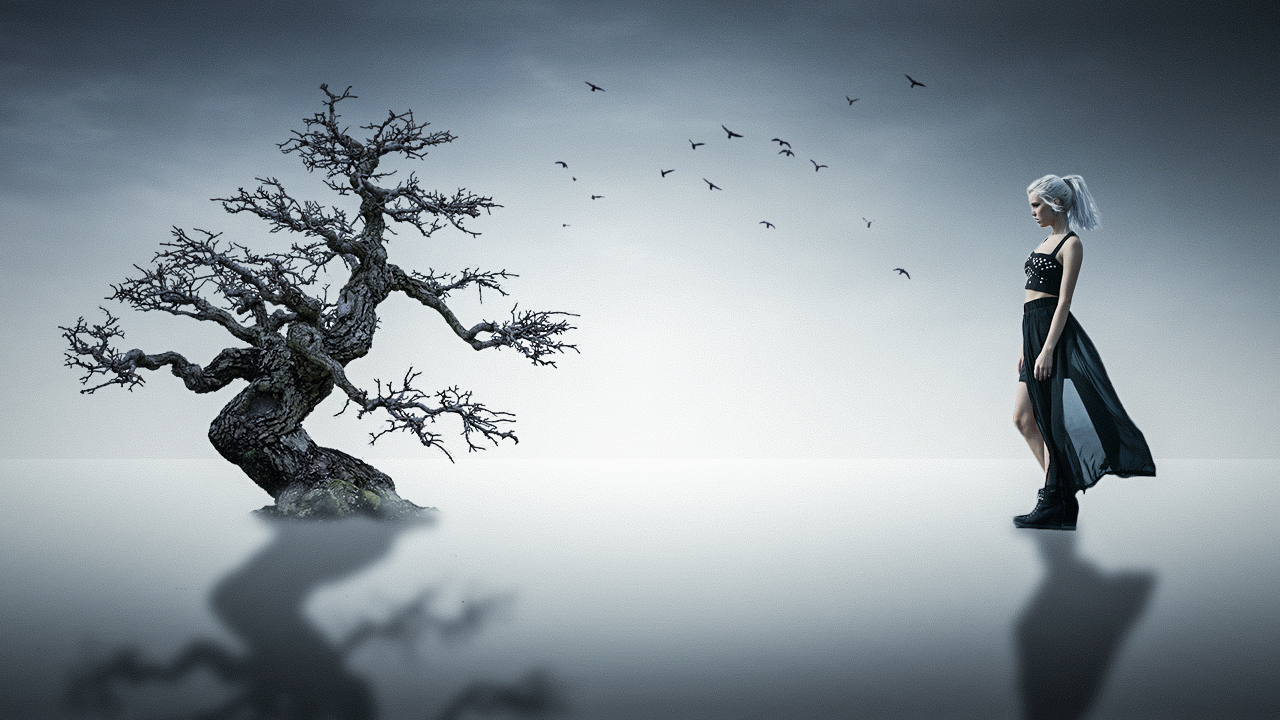
    Concept Art | Photo Manipulation Effects Tutorial in Photoshop

    In this video tutorial I am going to show you how to create concept art, Photo Manipulation Effects in Photoshop

    Video Tutorial


    Downloads
    Tree: 

  • Night War – Photo Manipulation |Photoshop Tutorial

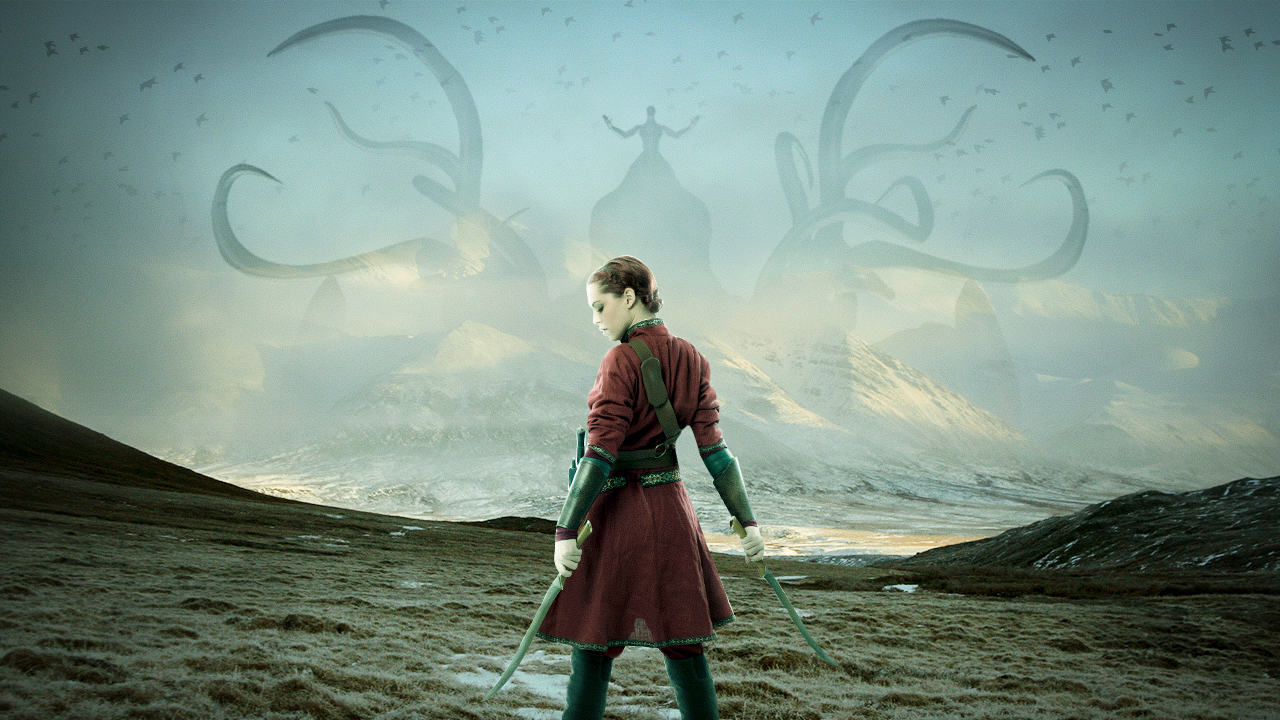
    Night War – Photo Manipulation |Photoshop Tutorial

    In this video tutorial I am going to show how to create a fantasy night war photo composition in adobe photoshop cc.

    Video Tutorial

    Downloads

    Birds

    Model

    Zalgo

    Background

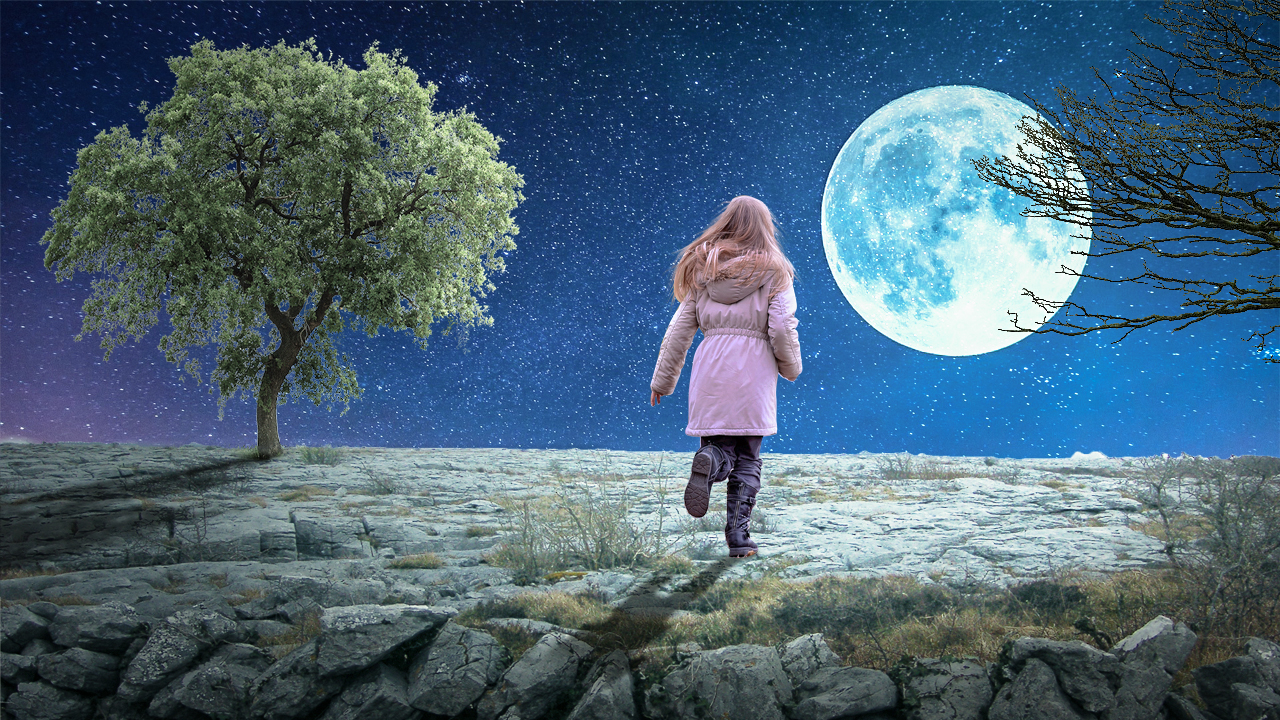
  • Child Interest – Fantasy Photo Manipulation | Photoshop Tutorial

    Child Interest – Fantasy Photo Manipulation | Photoshop Tutorial

    In this video tutorial I am going to show you how to manipulate/composite photos in Adobe Photoshop.

    YOU WILL ALSO LEARN FROM THIS VIDEO:
    >Photo Composition/Manipulation
    >How to add night sky
    >How to add star sky
    >How to remove background.
    >How to create moon lights
    >How to create shadows

    Downloads

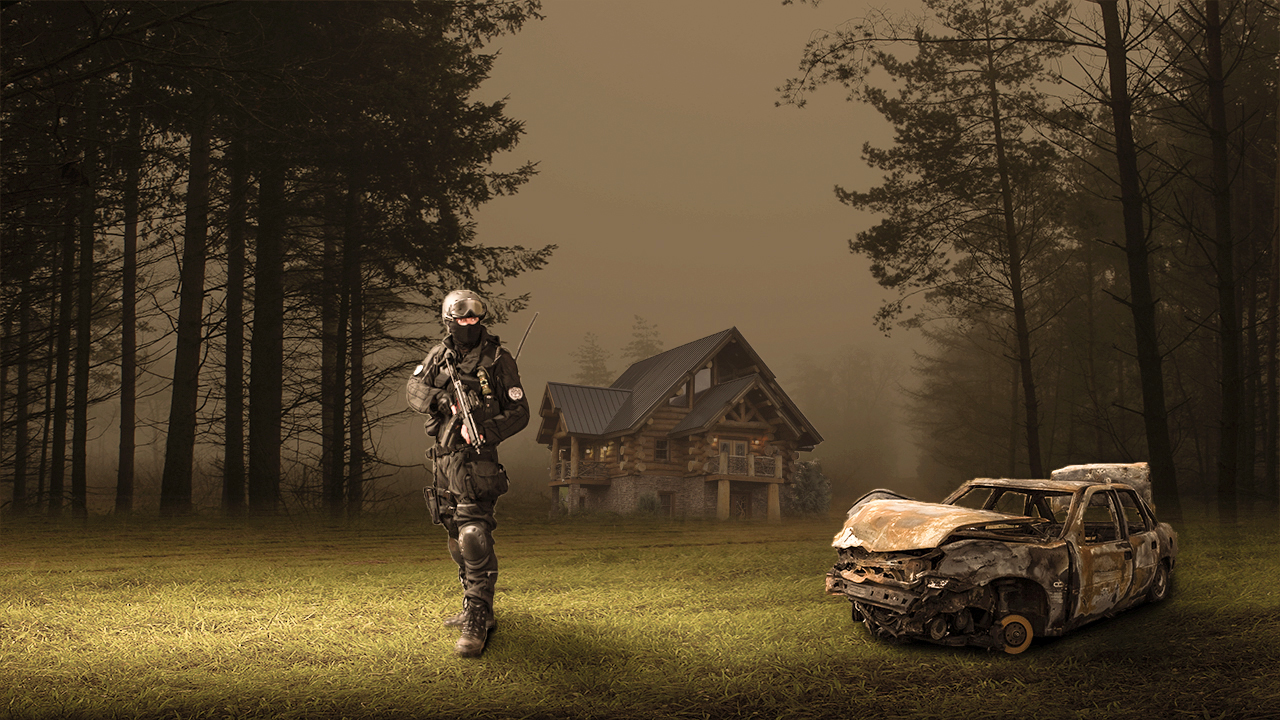
  • The Soldier Man | Fantasy Photo Manipulation in Photoshop

    The Soldier Man | Fantasy Photo Manipulation in Photoshop

    In this video tutorial I am making fantasy soldier photo manipulation/ composition in Adobe Photoshop
    So guys enjoy the tutorial and don’t forget to share, like and subscribe my channel.

    You will also learn from this video:Photo Manipulation in Photoshop Photo Composition How to convert day into night How to create lighting How to create shadows How to use camera raw filter How to add fog


    Downloads